Hosting Multiple Top-level Domains Using MODx Revolution
February 10, 2011 | Tags for this entry: MODx, web developmentAs a follow-up to the previous entry for setting up multiple subdomains in Revo, this entry explains how to use multiple top-level domains in a single installation MODx Revolution without worrying about access to your Apache config file.

Hosting multiple domains in MODx Revolution has been covered at H-Quadrat. But, just as with subdomains, I prefer to give each domain its own folder on the server to keep js, css and images tidy. So we will go into detail about how to route each domain to separate resource folders.
Preparation:
- The top-level domains that you wish to use should already be pointed to/parked on the server where Revo is installed. Do this the same as you would with setting up hosting or parking for any domain.
- You will need FTP access to the web directory where you plan to have MODx installed. We will be using it to upload files and create the assets folders.
- This tutorial assumes that you have MODx installed already. We will be using a fresh install of 2.0.7-pl. (Download)
- Please note that in the scripts you see in this tutorial, the bolded items are things you need to change for your setup.
Note: Although I’ve already covered the beginning parts of the setup process in the previous article, they will all be repeated here for completeness.
Creating Contexts
Setting up multiple sites will be done in what’s called “Contexts”, essentially “states” that your site can switch to. Basically, we’ll set the conditions that tell MODx which state to be in based on how the visitor got to the site.
When you first log into the MODx Manager, you’ll notice that there’s a little house icon in the tree. This is your default context.

The default ‘web’ context with basic pages added.
To create a new context, we need to go to System > Contexts in the top menu.

Location of the Contexts menu
Once there, you’ll notice that our default ‘web’ and ‘mgr’ contexts are there. The ‘mgr’ context is the manager interface. Neither of these can be edited or removed.
Click ‘Create New‘ and we’ll create our first alternate domain. The ‘Content Key‘ refers to how you want your context to appear in the sidebar and how you will refer to it when you tell MODx to go there. This should be simple, and include no spaces.
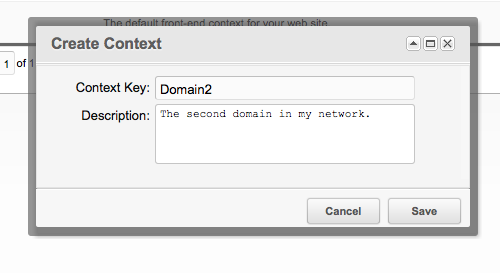
I’m calling my first alternate domain ‘Domain2’ for this example, since it’s assumed that my first domain will be attached to the ‘web’ context.
Refresh the resource tree on the left (using the green “recycle” arrows), and you should see your new context appear below the original ‘web’ context. This will be the home of our first alternate domain. I always create the minimal pages needed inside any new contexts just to give it some life and for testing.
Go ahead and add an index and an error page. You can use the new ‘Quick Create’ feature by right-clicking the new context and choosing ‘Quick Create > Document‘.
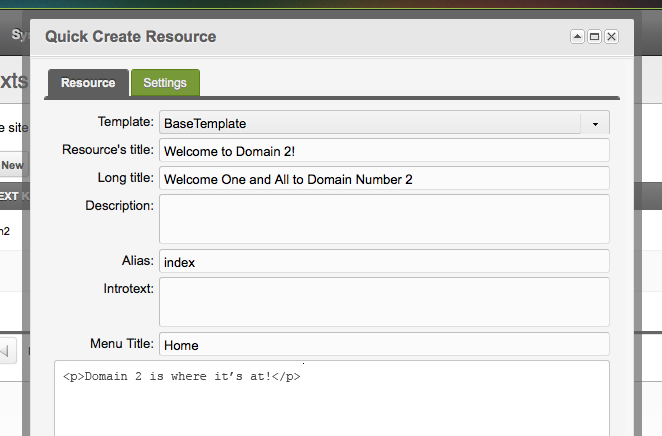
I added content that will immediately let me know that I’m looking at the correct context during testing.
My resource tree now looks like this:
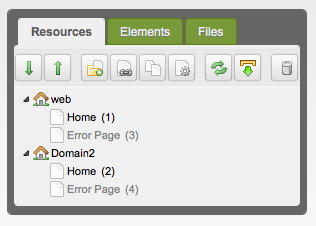
Note: As of 2.0.5, you can edit your system settings and choose which field you want to display for each resource in your resource tree. In my example, I’ve chosen ‘menutitle‘ in stead of the default ‘pagetitle‘. This setting is found on page 4 of your system settings as ‘Resource Tree Node Field‘
Adding Context Settings
Now, we need to make our new context actually DO something by adding in the system settings specific to this child site.
- Go back to your list of contexts under System > Contexts
- Right-click the new context you created.
- From the pop-up menu, choose ‘Update Context‘
- Click on the green tab for ‘Context Settings‘
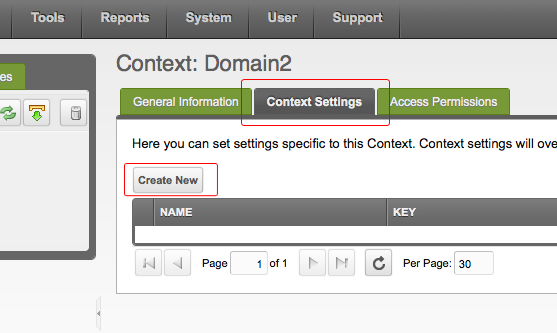
Location of Context Settings
We’ll be using this area to override global settings for things like ‘default home page’, ‘default template’ and pretty much any other global setting.
Click ‘Create New‘.
In the panel that pops up, there are several fields. We only want to edit the Key, Name and Value.

Context setting value fields
Do this once for each of the following settings:
- site_start – the ID of your new context’s homepage.
- base_url – Set this value to “/” (no quotes) since we’re making the root of the URL our base.
- http_host – Set this value to “yourseconddomain.com” (your add-on domain url)
- site_url – Set this value to “http://www.yourseconddomain.com/” (FULL domain url). Must have trailing slash.
Here’s what my finished context settings panel looks like:

Note: You’ll notice that I’ve added the value for the error page. You’ll want to do this, but it is NOT required to get your context up and running.
Option 1: Mapping Domains to their Contexts by Using Single Index
Note: Jump to Option 2 if you plan to give each domain its own folder.
When the official documentation refers to a ‘Gateway Plugin’ it’s essentially referring to the ‘index.php’ file. ONLY do this if you’re not planning on giving your sites separate resource folders. We will add conditionals to the main index.php that will handle the traffic for us.
This is extremely easy to do. Open your ‘index.php’ file and scroll down to the bottom. You’ll see a block of code that looks like this:
/* Initialize the default 'web' context */
$modx->initialize('web');
You can replace those two lines with the following:
/* Setup context mapping */
switch ($modx->getOption('http_host')) {
	case 'modxdomain2.com:80':
	case 'modxdomain2.com':
		// if the http_host is of a specific domain, switch the context
		$modx->switchContext('Domain2');
	break;

	default:
		// fallback, go to main context
		$modx->initialize('web');
	break;
}
Notice what’s happening here: “If the http_host setting matches the domain that was used to access this site, switch to the context associated with that http_host“.
For each extra domain, you would repeat the first section, from the switch all the way to the first break. Change the items that I’ve bolded to match the domains you’re working with, of course.
At this point, if your domains are parked, you should be able to visit your alternate domain and see pages from the second context!
You can stop here if you’re going to have all resource files in the main directory. Continue reading to see how I set up unique folders for each domain.
Option 2: Giving each Domain a Unique Folder
Now we create a folder on our server that will house the resources for our new domain. It can go anywhere, but for now, we’ll place them all in the same directory where MODx is installed and give it the same name as our domain. I’m calling it ‘modxdomain2’ for this example so there’s no guessing once I have several domains in place. Inside this newly-created folder, you’ll want to copy three files from the root directory:
.htaccess
index.php
config.core.php

This keeps our sites’ files organized neatly and prevents things from getting messy once all the domains are set up. Now that you have that in order, you can add all the css, javascript, files and folders that would normally live in the root of your web projects. Mine looks like this:

Routing Domain to Specific Folder on the Server
Similar to our earlier approach, we’ll be using .htaccess directives to tell the server what the root folder should be for each domain. Last time, we set it so that it would automatically map to a folder based on the subdomain that was used to access the site. This time around, we won’t use that approach because we can’t guarantee that some things won’t get confusing on the server once all domain names are in place. That said, we’ll want to type the directives manually so that we have ultimate control over what folder names go with each domain.
Open your ROOT FOLDER’S .htaccess file and paste the following:
#MAP TLD TO CUSTOM SUBDIRECTORY
RewriteCond $1 !^foldername/
RewriteCond %{HTTP_HOST} ^www\.modxdomain2\.com
RewriteRule (.*) /foldername/$1 [L]
Telling the Browser Which Context to Load
If you read Option 1 above, you noticed that we used the single index to insert all the rules that direct the user’s browser to the proper context based on which domain they used to access the site. We still have to do this, only the index will simply have a single rule, since our .htaccess is handling the re-routing for us already.
So, in the index.php that you copied into your second domain’s folder, find the following lines:
/* Initialize the default 'web' context */
$modx->initialize('web');
As you’d suspect, we do NOT want to point this traffic to the ‘web’ context. That would show the main site. We want it to go to our ‘Domain2’ context. So simply change it to this:
/* Initialize the default 'web' context */
$modx->initialize('Domain2');
Of course, you’ll want to replace ‘Domain2’ with the name you gave to your second context in MODx. You can also change the comment to read whatever you want.
Fixing Friendly URLs
Since we’re using some pretty advanced directives in the .htaccess file, we’re going to have to make changes to the frienly URL script that comes with MODx. Basically, we’ll have to tell it to only work on the primary domain. Open the ROOT .htaccess file and paste the bolded line into the default friendly URL script and be sure to change it to your domain name.
# The Friendly URLs part - MUST BE SPECIFIC TO TOP-LEVEL HOST SO AS NOT TO CONFLICT WITH SUBFOLDER REDIRECTS
RewriteCond %{HTTP_HOST} ^www\.yourprimarymodxdomain\.com
RewriteCond %{REQUEST_FILENAME} !-f
RewriteCond %{REQUEST_FILENAME} !-d
RewriteRule (.*) /index.php?q=$1 [L,QSA]
Notice how we added the first line that tells the server that ONLY our primary domain (whatever yours happens to be) will use the friendly URL script in this file. The other domains will have their own .htaccess file.
So, next, in the child .htaccess file that you copied into your subdirectory, delete everything else and place the following code to enable friendly URLs on child domain. (You will have to do this for each site that has its own folder.)
RewriteEngine On
RewriteBase /

# The Friendly URLs part
RewriteCond %{REQUEST_FILENAME} !-f
RewriteCond %{REQUEST_FILENAME} !-d
RewriteRule (.*) index.php?q=$1 [L,QSA]
Point Child Site to the MODx Core (503 Errors)
If you’ve tried to access your child site already, you should be getting a pesky 503 Error. This means that your gateway cannot locate the MODx core. Open your second site’s config.core.php and do the following.
Find
define('MODX_CORE_PATH', dirname(__FILE__) . '/core/');Change to
define('MODX_CORE_PATH', '/home/example/public_html/core/');Use the full web path to your site’s core folder. If you don’t know your site’s full path, check your control panel or hosting welcome letter. You can use various PHP functions to find this information as well.
You’re All Done!
Now, with this in place, development can continue on addon domains without having to refer to relative directories. You can use absolute paths in your CSS and JS such as background-image: url('/images/background.gif'). This eliminates the need to make extra changes when, for instance, moving from staging to live servers.
Now you should be able to add as many domains to your MODx Revolution installation as you want. Of course, you want to be reasonable. If your site deals with incredible amounts of traffic, you may want to consider separate installations for each domain. But for the majority of site owners and developers, this will be the perfect solution for keeping a family of sites in one place.
Bonus Information and Optional Tweaks
Automatically Route to WWW Site
As you might know, for SEO reasons, it’s good to globally redirect all traffic to a single version of your domains. I typically choose the WWW version. You can use the default MODx script in the .htaccess file and set this up for each of your domains. But with the following script, you can set it once for all domains that you point to this server. No customization needed in this script.
# FORCE WWW ON ALL URLs
RewriteCond %{HTTP_HOST} !^www\.
RewriteRule ^(.*)$ http://www.%{HTTP_HOST}/$1 [R=301,L]
Related Posts
 Image Manipulation with phpThumbOf in MODx Revolution
 Hosting Multiple Subdomains on MODx Revolution
 How to Fix MODx CSRF Error when Using Firefox 3.5
 Controlling Safari & Chrome’s Resizable Textarea with Simple CSS
 Movement & Type: Are You Gonna Be My Girl
 Transparent PNG in IE6 with CSS Hacks and AlphaImageLoader
February 11th, 2011 at 3:07 pm
[…] This post was mentioned on Twitter by mary, Mike Schell. Mike Schell said: nicely done! RT @abelafonte: Hosting Multiple Top-Level domains in #MODx #revo with unique resource folders http://ow.ly/3UnwR […]
February 11th, 2011 at 3:51 pm
Nice work, as usual.
February 12th, 2011 at 12:04 pm
Thanks, Lonnie. This one was a LOT of work.
March 7th, 2011 at 2:30 pm
Great post. Thanks!
I found it useful to also add the site_name key to each context.
It helps if you then reference the [[++site_name]] tag in your meta header tags.
March 7th, 2011 at 2:32 pm
Great point, Gareth. I’m thinking of doing a follow-up that contains all the cool things you can explore with context-specific settings.
March 8th, 2011 at 3:18 am
Thanks for very nice and detailed tutorial. I haven’t *really* tried to get any live sites into single install yet, but I am sure I am going to try that.
Thanks again! 🙂
March 28th, 2011 at 5:15 am
Thanks for taking the time to post this – very helpful indeed 🙂
June 9th, 2011 at 2:56 pm
One thing for all to note: Creating top level domains using contexts is a BAD idea if you have to use SSL in any of the domains you’re creating. Each site has its own IP for SSL. Wildcard SSL will only work for subdomain contexts.
June 25th, 2011 at 5:15 pm
[…] login). This might have been possible using MODx evolution but I never tried. Have a look at this tutorial on how to set this up. This is also a great way to have a “hidden” beta site to test […]
July 8th, 2011 at 8:07 pm
this is failing to work with revolution 2.1.2
I had to use MODX_HTTP_HOST instead of getOption(‘http_host’) and do $modx->initialize(‘custom_context’);
July 19th, 2011 at 3:41 pm
Geezus, this is rocket science! With Drupal it’s 100 times easier to do multi-site install and any thing else for that matter.
August 30th, 2011 at 11:12 am
@Shapa If you find this rocketsiencie how did you ever managed to learn to tying your shoelaces? Ofcourse, other CMS will have things better than ModX. But when i compare ModX and Drupal i can say ModX kicks some serious as if it comes to simplicity and freedom.
@Belafonte: If all my other domains need to use the same .css file, how do i fix this? In the templates used it points to /assets/css/style.css etc.
Supurb article!!
October 19th, 2011 at 1:47 am
really great tutorial, but what if i want to update my modx installation? would that work or do i have to make changes after the update?
awesome tutorial though.
October 19th, 2011 at 8:11 am
The only thing to remember is that if you have your gateway changes in your index.php (as opposed to a plugin in MODx), then you’ll need to paste that back into your index.php after you update.
November 28th, 2011 at 3:20 pm
This didn’t work for me. It keeps redirecting to my first domain.
November 28th, 2011 at 4:53 pm
Tried option 2 and it didn’t work either. Followed everything to the letter. I love modX but this makes it hard.
November 29th, 2011 at 2:09 pm
What do you mean by *parked* domains? I have several MODX Evo installs on a dedicated server. Different IP#s. When I try this, I get the default Apache page and not the child domain using Option #1.
Option #2 doesn’t work either. So looks like I’m in the same boat at Chris Were.
February 24th, 2012 at 10:52 am
Hello, First of all thanks for this tutorial. I just have a problem on a MODX Revolution 2.2.0-pl2 install. My parked domain won’t redirect to the folder (i chose for the second option).
Some help would be nice..
THijs
March 9th, 2012 at 8:39 am
Sadly I just get dropped at my first normal URL.
Any ideas?
Thanks.
March 9th, 2012 at 9:34 am
@Tony – If that happens, it means your gateway plugin is somehow incorrect.
March 12th, 2012 at 8:32 am
I got it working fine using option2 but how can I use media sources per domain. The media sources I defined always point to the main domain
July 3rd, 2012 at 5:21 am
superb article.
Thanks man.
July 12th, 2012 at 12:28 am
This is working perfectly! I only have one problem: my add-on domain, hugsandkissesretail.com is getting redirected to fletcherwebdesign.com/hugsandkissesretail.com (hugsandkissesretail.com is the name of this website’s folder in cPanel). Is there any way to do a url rewrite to make the URL actually read correctly?
July 12th, 2012 at 5:32 pm
Shawna, if your parked domain is showing the primary website, then your Gateway plugin isn’t set up properly.
Be sure that your gateway contains the exact domain you’re dealing with.
For example: If you type http://www.mydomain.com in the gateway and then access your site without WWW, it won’t re-route the traffic.
July 21st, 2012 at 4:00 pm
Hmmm… I don’t happen to HAVE a Gateway plugin in my MODx plugins section. Should I? And surprisingly enough, this answered a separate question, kind of. I wasn’t able to view MY site when I finally changed the CSS to a resource, but I figured out that’s because I was visiting my site without www. When I add that, I now see what I’m supposed to see. lol
Is not have the Gateway plugin an issue? And I read somewhere I may have to change my “web” context setting once I add a new context. Would this solve my problem?
July 21st, 2012 at 4:08 pm
Shawna, Yes you need to have a gateway plugin for this to work.
Go back to the tutorial and look at “Option 1”. Those are the instructions for creating a gateway plugin and what to type there.
July 21st, 2012 at 6:38 pm
Oh, lol I did that. I thought by plugin you meant a plugin that would show up in “Elements” in MODx. Now if I want visitors to be able to visit my site with or without http://www., what should I be doing?
July 21st, 2012 at 6:40 pm
Well, ok, I’m sorry, I take that back. I didn’t do that because the tutorial said not to if I was going to use separate folders. Since they are add-on domains to my site, they already contained they’re own folders. I did option 2 and skipped creating the folders and just used the ones already in my cPanel.
July 21st, 2012 at 8:10 pm
I have changed this process slightly and need to update this blog post.
But go back and put your index.php back to default and ONLY use the gateway plugin method. Even if you’re giving each domain its own folder, it’s better to put your gateway code in the plugin instead of in the index.php file.
December 9th, 2012 at 6:37 pm
.abelafonte
can you explaine your comments about restoring the index.php and using the gateway plugin, option 1 states that the Gateway Plugin is essentially the index.php file.
December 9th, 2012 at 7:43 pm
@ben – I know, it’s confusing and took me a bit to figure it out as well.
The process of creating a gateway plugin that’s not in the index.php involves actually going to the “plugins” section of MODX and creating a new plugin there. I call it ‘Gateway’ in my builds, just to be consistent. But the name of your new plugin can be anything. The important thing is to have the correct system events checked.